
How to Set Downtime on iPhone
How to set Downtime on iPhone: open Settings, tap Screen Time, tap Downtime, turn on Scheduled, and set a start and end time. Apps outside your Always Allowed list get blocked for that window, though Apple's own override lets you tap through if you decide to.
How to Set Downtime on iPhone: Step by Step
- Open Settings and tap Screen Time.
- If Screen Time isn't already on, tap Turn On Screen Time, then confirm it's set up for This is My iPhone (or for a child's device, if you're managing one through Family Sharing).
- Tap Downtime.
- Toggle Scheduled on.
- Choose Every Day for one schedule that applies daily, or Customize Days if you want different start and end times on different days — weekends often need a different window than weekdays.
- Set your Start and End time. This is the iPhone downtime settings window during which apps outside your allowed list will be blocked.
Once it's on, the schedule runs automatically every day at the times you set, with no need to turn it on manually each night.
What "Always Allowed" Apps Do
By default, Downtime blocks most apps but leaves a small set available no matter what — typically Phone and Messages, so you can still be reached in an emergency. You can add to that list under Screen Time > Always Allowed, choosing which apps stay usable during your Downtime window and which don't. This is worth reviewing once after setup, since the default list is meant for general use and may not match what you actually want available during your specific screen time downtime.
What Happens When Downtime Starts
Once the window begins, apps not on your Always Allowed list show a blocked screen instead of opening normally. From that screen, Apple gives you a way to continue anyway — typically an option to ignore the limit for a short time or for the rest of the day. That override exists because Downtime is built as a general-purpose tool, useful for a wide range of situations, including plenty where being able to override it is exactly the right behavior.
For a single adult managing their own habits, though, that same override is often the actual problem: if you're the one who set the Downtime schedule, you're also the one who can tap past it, and at 11pm that's rarely a difficult tap to make.
Locking Downtime With a Screen Time Passcode
Apple lets you set a Screen Time Passcode (under Screen Time settings) that's required to change settings or to grant "more time" requests. Some people set this passcode and then deliberately don't memorize it — asking a friend or partner to hold it instead — specifically so they can't override their own Downtime schedule in the moment. It's a real workaround, and it works for some people.
The gap is that it depends on someone else being available and willing to withhold the code from you when you ask, which isn't always practical, and plenty of people end up just resetting the passcode themselves the first time they really want past it.
What a Dedicated Blocker Adds on Top of Downtime
Native Downtime is a genuinely useful starting point, and for a lot of people the schedule and Always Allowed list are enough. Where it falls short is specifically the override — there's always a path back in if you're the one holding the passcode, even if that path takes an extra step or two.
Blokt builds on the same underlying Apple Screen Time system but removes that path entirely: you set an evening start time and a morning end time, choose which apps or categories are blocked, and once the window starts there's no unblock button at all — not a passcode-protected one, not a hidden one, none. No account is required either, so there's nothing to log back into as a workaround.
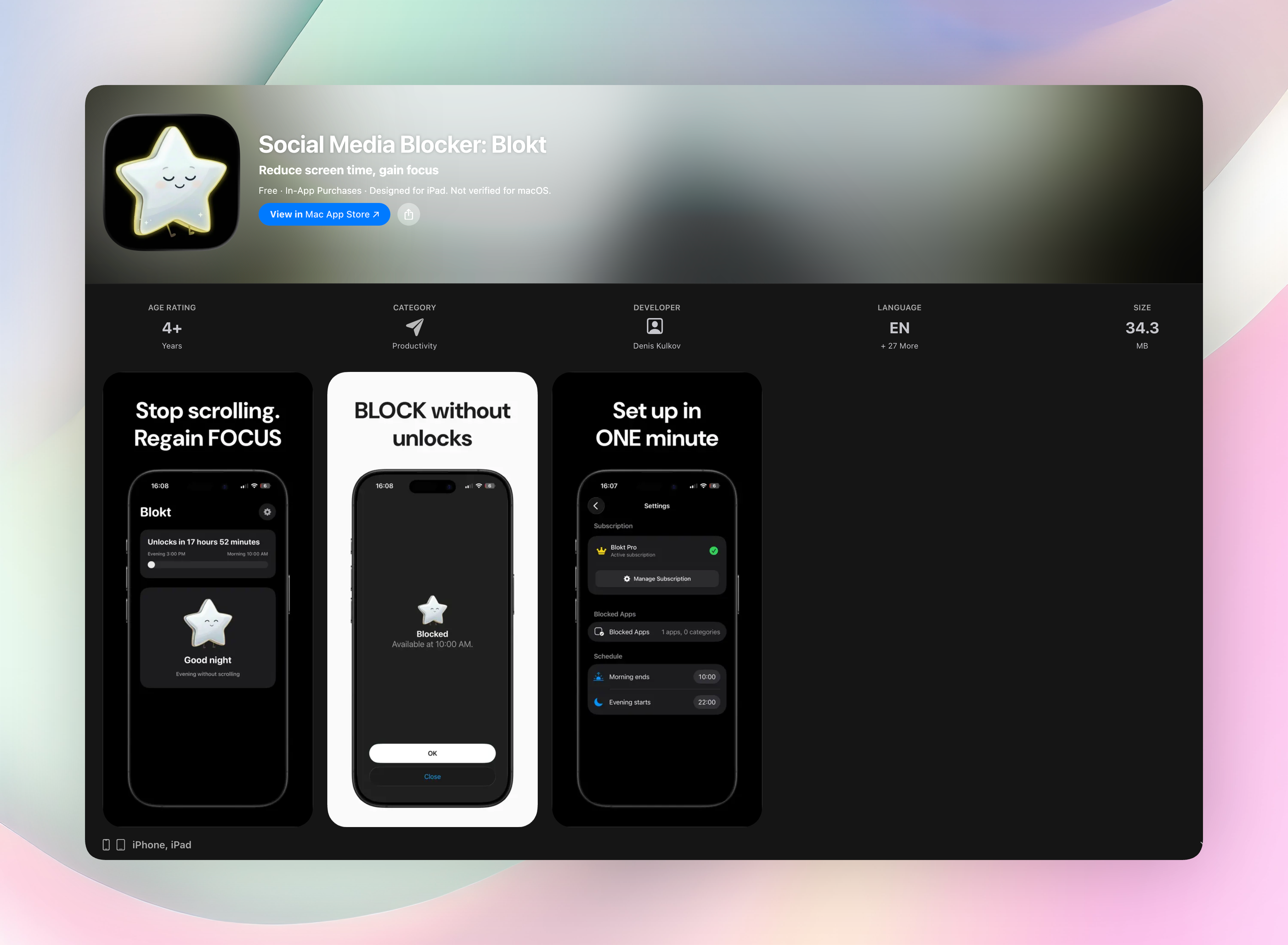
If self-set limits have failed you for the same reason — an override that's too easy to reach for — screen time limits not working covers why that pattern is so common and what tends to actually fix it.
FAQ
How do I turn on Downtime on iPhone?
Go to Settings > Screen Time > Downtime, toggle Scheduled on, and set a start and end time. Apps outside your Always Allowed list will be blocked during that window once it's active.
What is Screen Time Downtime?
It's Apple's built-in feature for scheduling a window each day where most apps are blocked except the ones you've explicitly allowed, like Phone and Messages. It runs automatically once you've set a schedule.
Can I still use apps during Downtime if I really need to?
Yes, by default. Apple includes an override you can tap through, or you can request more time. That flexibility is useful for many situations but means Downtime alone isn't a hard block if you're managing your own device.
How do I stop myself from overriding my own Downtime?
Setting a Screen Time Passcode that someone else holds is one option Apple supports, though it depends on that person being available. A dedicated blocker with no override at all removes the workaround entirely, rather than relying on a passcode you might still have access to.
Free Blokt tools
- Phone Addiction TestEstimate how much friction your phone habits create using time, pickups, cut-down attempts, and delayed sleep. See every factor behind your score.
- Social Media Addiction TestReflect on social-feed habits with an original, browser-based score and separate time-control, checking, and interference factors.