
Does Grayscale Mode Actually Help Phone Addiction?
Grayscale mode phone addiction fixes work by removing color as a reward — a strip of icons in shades of gray is less visually interesting to look at than one in bright reds and blues, which can make the reflexive glance a little less rewarding. It's a real, low-effort tactic, but it's a supporting change, not a fix on its own.
How to Turn On Grayscale Mode on iPhone
- Open Settings and tap Accessibility.
- Tap Display & Text Size.
- Tap Color Filters.
- Toggle Color Filters on, then select Grayscale from the filter options.
Your grayscale iPhone screen will now show everything — home screen, apps, photos — in shades of gray until you turn the filter back off. Because switching it on and off through this menu is a few taps deep, most people also set up a shortcut:
- Go back to Accessibility, scroll to Accessibility Shortcut, and select Color Filters.
- Triple-click the side button (or Home button, on older iPhones) any time to toggle grayscale on or off instantly.
The shortcut matters more than it sounds like it should — a filter that takes six taps to toggle rarely gets used consistently, while one you can flip with a triple-click actually gets used.
Why Grayscale Is Supposed to Help
The reasoning behind grayscale as a phone-addiction tactic is straightforward: a lot of what makes an app icon or a feed inviting to glance at is visual — bright colors, red notification badges, saturated photos. Strip the color out and the same screen becomes noticeably less eye-catching at a glance, which in theory makes the automatic, half-conscious pickup slightly less appealing than it would be in full color.
It's worth being honest that this is common-sense design reasoning rather than something backed by a specific measurement — nobody can tell you precisely how many fewer pickups grayscale causes, and it's reasonable to expect the effect to vary a lot from person to person.
Where Grayscale Actually Helps, and Where It Doesn't
Grayscale mode does one thing reliably: it makes the visual experience of using your phone less pleasant, which can reduce idle, low-purpose browsing — the kind where you're not looking for anything specific, just enjoying the scroll. If your habit is largely that kind of aimless, visually-driven scrolling, grayscale is a reasonable, nearly-free thing to try.
Where it does less: grayscale doesn't change anything about content itself. A gripping headline, an urgent-sounding message, or a genuinely engaging video is just as gripping in gray as in color — the pull there is about the content, not the color, and grayscale has nothing to say about that. It also does nothing about the reflexive, undecided pickup itself; you can absolutely open a grayscale phone on autopilot just as easily as a color one.
Grayscale Mode Phone Addiction Fixes: The Honest Verdict
Honestly, a little, for some people, in some situations — mostly around reducing idle visual browsing. It's not a mechanism for stopping compulsive checking altogether, and it won't do anything about the specific window of the day where you already know you struggle most, like the hour before bed.
That's where it works best paired with something that actually removes the option rather than just making it less appealing. Blokt blocks the apps or categories you choose between a set evening start and morning end using Apple's Screen Time controls, with no unblock button once the window starts — grayscale can reduce the aimless daytime scrolling, and a scheduled block can handle the specific evening window where a visual tweak alone won't hold.
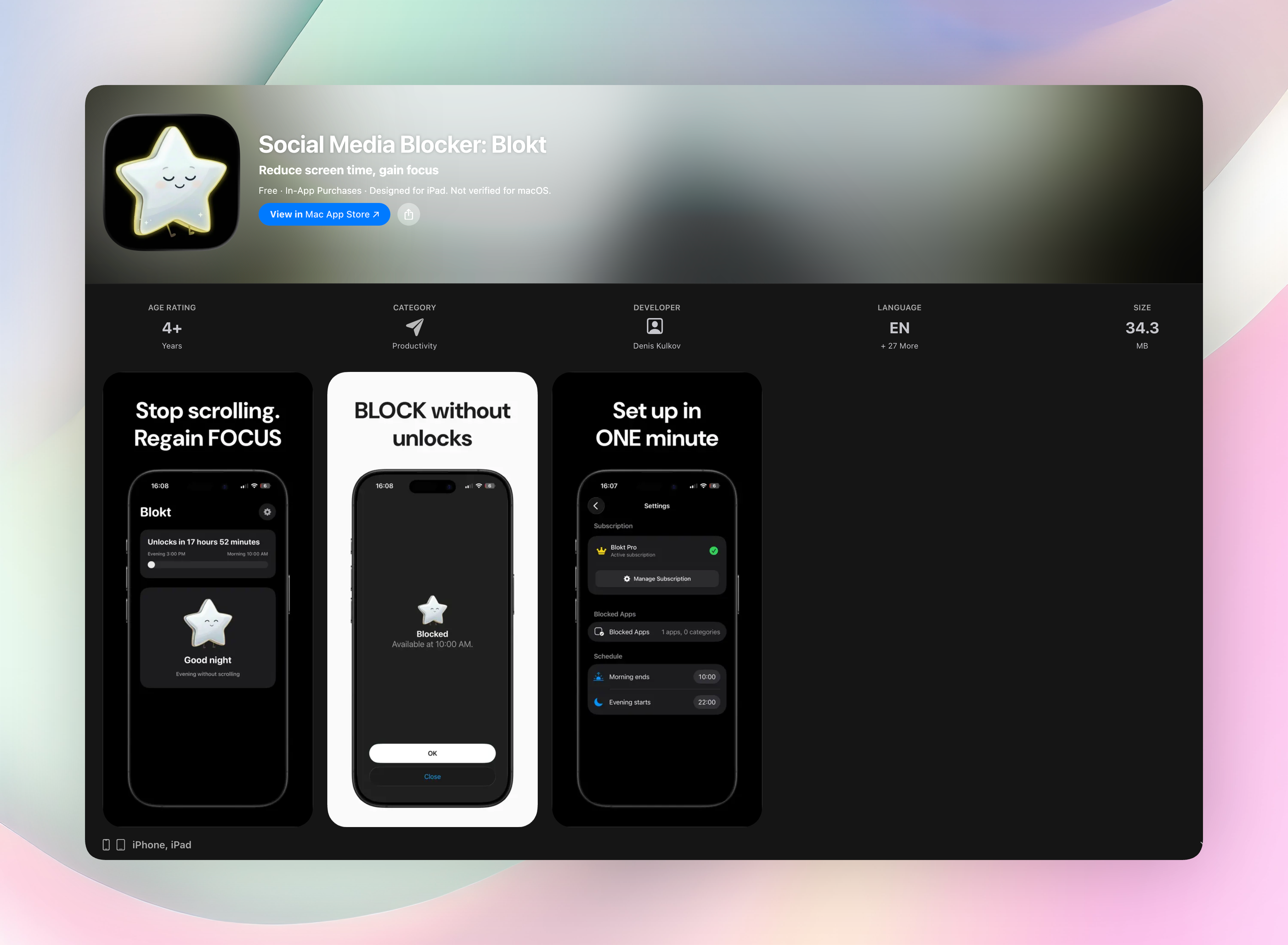
For the wider set of environment changes worth pairing with either tactic, how to break phone addiction covers defaults, friction, and scheduling in more detail.
FAQ
Does grayscale actually help with phone addiction?
Somewhat, for some people — it tends to reduce idle, visually-driven scrolling by making the screen less eye-catching. It doesn't do much for compulsive checking that's driven by content or habit rather than visual appeal.
How do I turn on grayscale on my iPhone?
Go to Settings > Accessibility > Display & Text Size > Color Filters, turn Color Filters on, and choose Grayscale. Setting it as an Accessibility Shortcut lets you triple-click a button to toggle it instantly.
Does grayscale mode drain less battery?
That's not really its purpose here, and any effect on battery life is minor compared to why people use it for phone habits, which is the reduced visual appeal.
Is grayscale enough on its own to fix phone addiction?
For most people, no. It helps with aimless, visually-driven scrolling, but it doesn't address reflexive pickups or specific high-risk windows like the evening, which usually need a scheduled boundary rather than a visual change.
Free Blokt tools
- Phone Addiction TestEstimate how much friction your phone habits create using time, pickups, cut-down attempts, and delayed sleep. See every factor behind your score.
- Social Media Addiction TestReflect on social-feed habits with an original, browser-based score and separate time-control, checking, and interference factors.